Touch on Mac: what to check in your app
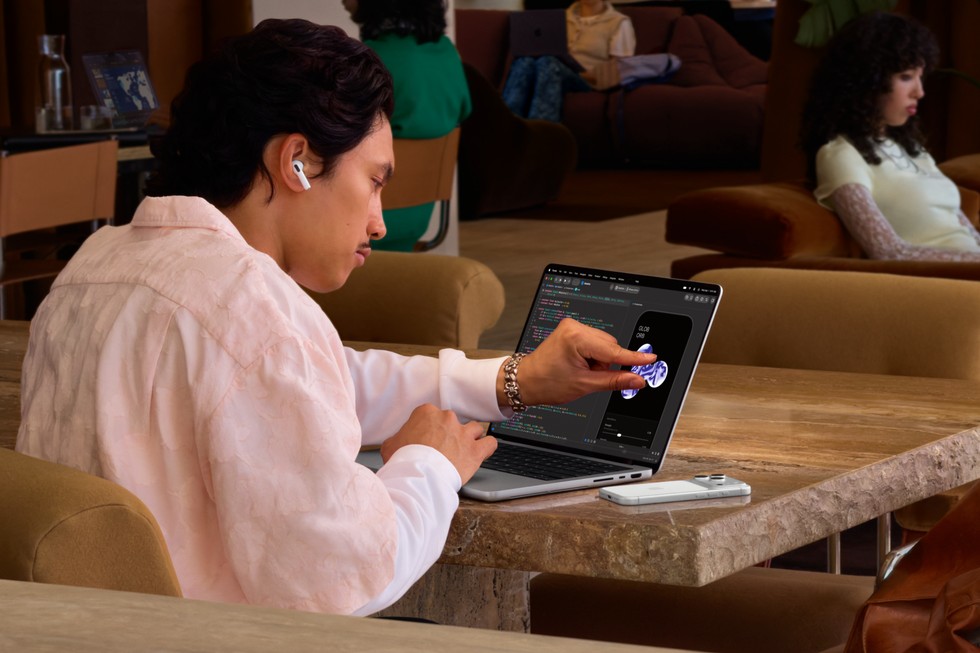
Apple announced a MacBook Pro with Touch, the first Mac with a touch display, and says many existing apps will work on it right away. The code that deserves a look is the code that does not: custom mouse handling gets only a one-finger emulation, and hover has no touch equivalent.
In short
- Apple announced the 14 and 16 inch MacBook Pro with PROLED XDR Display. Touch is built into the panel and is built for macOS 27.
- macOS translates touches into clicks, so many existing apps work right away. The updated system gesture APIs are for experiences designed for touch.
- Standard AppKit controls and gesture recognizers need no changes. Custom mouse tracking runs on a one-finger emulation only.
- You can test without the hardware: an iPad connected through Sidecar sends input down the same path.
Then and now
Apple describes Touch as new to the Mac, with the sensor inside the display panel instead of layered on top, which Apple says reduces latency. Until the hardware is in your hands, the documentation suggests Sidecar: input from a connected iPad follows the same path as input on a Mac with a touch display.
The timeline looks a lot like the iPhone Duo preparation earlier this month, as the table shows.
| iPhone Duo | MacBook Pro with Touch | |
|---|---|---|
| Developer news post | October 5 | October 28 |
| Devices available | October 23 | November 6 (deliveries start) |
| Group Labs | not checked | November 18 and 19 |
| Xcode support | not checked | 27.3 beta, "Coming soon" |
Same pattern: developer news first, hardware afterwards, videos and labs in between. I covered the first one in Is your iPhone app ready for iPhone Duo?, where Apple's advice came down to not assuming what the screen tells you about your app's shape. My take, not Apple's words: Touch asks for a similar habit, which is not assuming the pointer is a mouse.
What works as it is
The page to read is Apple's "Adopting gesture recognizers in your app". Gesture recognizers are the shared input model across AppKit, SwiftUI and Mac Catalyst, and they cover the mouse, a Sidecar iPad and a Mac with a touch display. The table below sums up what the article says about each kind of code.
| Your code | What happens with Touch |
|---|---|
| Standard AppKit controls | work without changes |
| Gesture recognizers | work without changes; the only way to receive multi-finger gestures and individual touches |
mouseDown(with:) overrides and tracking loops |
AppKit emulates one-finger tap and drag; no multi-finger input |
NSButton or NSSlider subclass overriding a mouse method |
AppKit falls back to the tracking loop |
Custom NSGestureRecognizer that never reaches a terminal state |
the app can look frozen |
Hover with mouseMoved(with:) and NSTrackingArea |
pointer input only; there is no hover on a touch display |
Swipes handled with trackSwipeEvent |
not translated by AppKit; your code has to handle them |
Two details the table cannot show. For embedded UI frameworks that have no touch support of their own, Apple's article describes an automatic mouse emulation: a tap becomes mouse down and up, touch and drag becomes a trackpad scroll, press and hold becomes a right click, and a two-finger pinch or rotate becomes a trackpad magnify or rotate. The emulation stops at one or two fingers. A framework that adds its own touch support can switch the extra emulation off with the NSIsTouchNative Info.plist key.
The second detail is new in macOS 27 and later. Instead of overriding a mouse method, you can add a target-action for tracking events in NSControl.Events, with @objc actions. If you only need the action to fire, primaryActionTriggered is enough.
What I would search for first
Apple's own search list is short, and it is a good place to begin:
nextEvent(matching:until:inMode:dequeue:)andtrackEvents(matching:timeout:mode:handler:), the tracking loops.- Overrides of
mouseDown(with:)andmouseDragged(with:). currentEventinside control actions. It no longer reliably returns the event that started the action; readmodifierFlagsandpressedMouseButtonsinstead.- Hover code. It only fires for a pointer, so anything a user must reach by touch needs another route.
- Swipes. AppKit does not translate touch swipes for you, and for full-page navigation swipes Apple says to check
isTouchSwipeNavigationEnabled.
To add touch to an existing tracking loop, the article suggests a gesture recognizer made for touch. Setting buttonMask = 0 makes it recognize touches only, so the mouse and trackpad stay in the loop.
On target sizes: the "Bring Touch to your Mac app" Tech Talk has a section on expanding hit targets, and a code comment in its sample expands to a minimum of 36 points on each axis. That is a comment in a sample, not a published guideline value, so I treat it as an example. The test checklist in the article also asks you to make sure small targets, such as resize handles, are easy to hit with a finger.
The other two talks cover the design side and one adjacent feature. "Design for Touch on Mac" goes through touch interactions, custom and system gestures, hover actions and expanding controls. "Bring Live Activities to Mac" shows ActivityKit for the menu bar and Dynamic Island appearances, and Apple's announcement says Dynamic Island is coming to Mac for Spotlight, Live Activities and Siri AI.
The good and the not-so-good
Good:
- Many existing apps work right away, because macOS translates touches into clicks (Apple).
- Standard controls and gesture recognizers need no changes (Apple's article).
- You can test with Sidecar, without a touch Mac.
- Mouse, trackpad and keyboard keep working next to touch.
Not so good:
- Mouse tracking code gets a one-finger emulation, with no multi-finger gestures or individual touches.
- Hover does not exist on touch, swipes are not translated, and
currentEventis no longer a safe way to read the starting event. - Xcode 27.3 beta is still "Coming soon", and Apple's footnote says the third-party apps it names will be available later this year.
- Apple's pages give no hit target size to design against, apart from that code comment.
What I would do
My suggestions, not facts:
- Search the codebase for the list above before anything else. That is where touch behaviour can differ from the mouse.
- Run the app with Sidecar and go through every window, sheet and popover with a finger, following Apple's checklist: tap the controls, drag, select and scroll with one finger, try pinch and rotate, hit the small targets.
- Where a tracking loop needs more than one finger, move that part to a gesture recognizer.
- Do not put anything essential behind hover.
- If something stays unclear, the Group Labs are the place to ask.
Sources
- Say hello to Touch on Mac — Apple Developer News — the announcement for developers: new videos, Group Labs and articles
- Get ready for Touch on Mac — Apple Developer — the three Tech Talks, the Group Labs dates, Xcode 27.3 beta "Coming soon", the documentation links
- Apple unveils groundbreaking MacBook Pro with PROLED XDR Display — Apple Newsroom — Touch on Mac, the sensor in the panel, macOS translating touches into clicks, the pre-order and delivery dates, Dynamic Island on Mac, the "later this year" footnote
- Adopting gesture recognizers in your app — Apple Developer Documentation — the behaviour table, emulation,
currentEvent, hover, swipes, Sidecar testing,NSIsTouchNative, the macOS 27 target-action change - Bring Touch to your Mac app — Apple Tech Talks — touch across frameworks, gesture recognizers, hit targets (the 36 point comment)
- Design for Touch on Mac — Apple Tech Talks — touch interactions, custom and system gestures, hover actions, expanding controls
- Bring Live Activities to Mac — Apple Tech Talks — Live Activities in the menu bar and Dynamic Island on Mac
- Prepare and submit your apps for iPhone Duo — Apple Developer News — the earlier device preparation post, October 5
- Apple Newsroom — iPhone Duo arriving at Apple Store locations on October 23
- Is your iPhone app ready for iPhone Duo? — this blog — my earlier post on the same kind of preparation